
Setup Guide · 8 min read
How to Install IPTV on Firestick (2026 Guide)
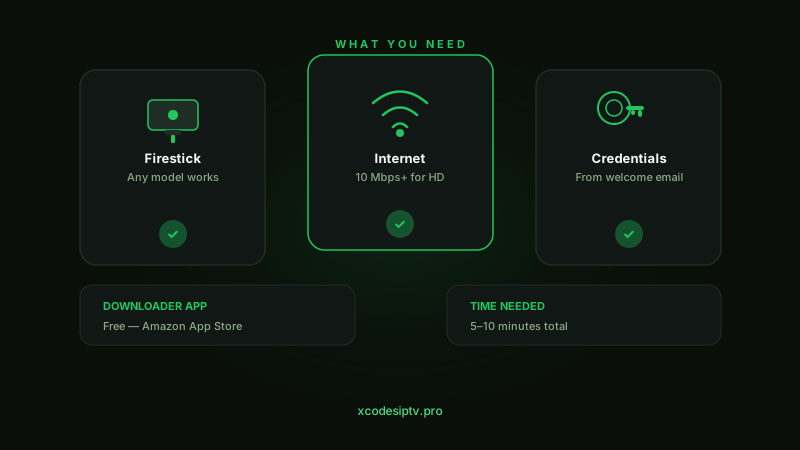
This takes about 5 minutes. You need your Firestick, your XCodes IPTV credentials, and a Wi-Fi connection. No jailbreak, no technical knowledge, no risk to your device. Amazon built sideloading into every Firestick — you are just using it. Here is the full process.
What You Need Before You Start
| Requirement | Details |
|---|---|
| Firestick model | Any — Lite, HD, 4K, 4K Max |
| Internet speed | 10 Mbps for HD / 25 Mbps for 4K |
| IPTV credentials | Username, password, server URL |
| Downloader app | Free — Amazon App Store |
| Time needed | 5–10 minutes |
One honest note: if your Wi-Fi signal is weak where your TV sits, the install works fine — but streaming quality will suffer later. Worth fixing before you start.
Don't have a subscription yet? You can start a free trial first — 24 hours of full access, no credit card. Or view the XCodes IPTV subscription plans if you're ready to commit.
Step 1 — Enable Apps from Unknown Sources
Firestick blocks third-party apps by default. One setting changes that — takes 30 seconds.
- From the home screen → Settings (gear icon, top right)
- Select My Fire TV — older models say "Device" or "Device & Software"
- Tap Developer Options. If it's missing: go to Settings → My Fire TV → About, then click your Fire TV name 7 times to unlock it
- Toggle Apps from Unknown Sources to ON. On Fire OS 8, enable it specifically for the Downloader app in the list
- Press Turn On when the warning appears
Amazon's warning sounds alarming. It isn't. You are using a feature Amazon deliberately included in every device. The risk is only from apps you choose to install — and you control that completely.

Step 2 — Install the Downloader App
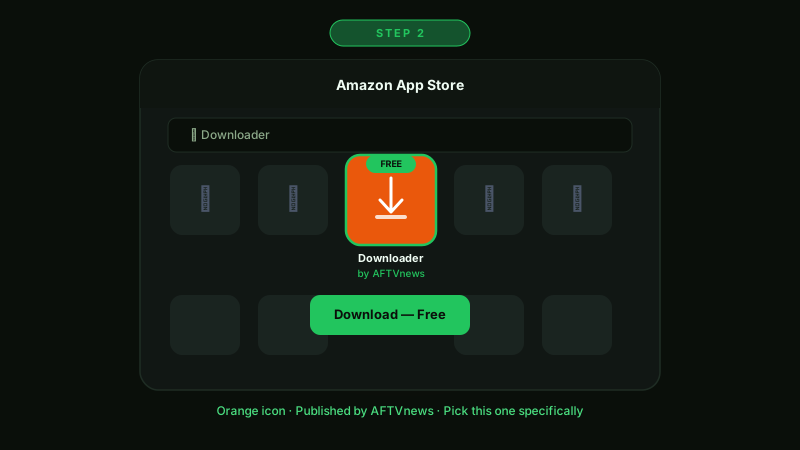
Downloader is free and lives in the Amazon App Store. It lets you install apps using a direct URL — no computer, no cables.
- Press the home button on your remote
- Go to the Search icon (magnifying glass)
- Type Downloader — look for the orange icon by AFTVnews
- Click Download — under a minute to install
- Open it → tap Allow for file access permission
Pick the orange icon by AFTVnews specifically. There are lookalike apps in the store that are not the same thing.
Step 3 — Install IPTV Smarters Pro
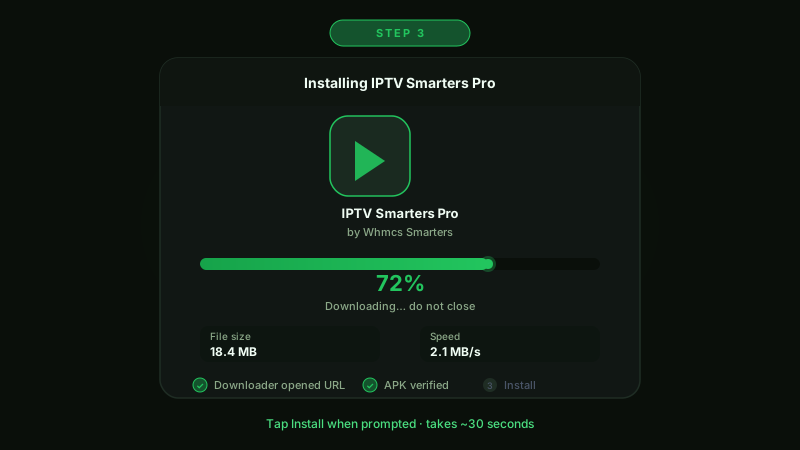
IPTV Smarters Pro handles both M3U playlists and Xtream Codes — exactly what XCodes IPTV uses. It is the most reliable starting point for beginners.
- Open Downloader
- In the URL bar, enter the IPTV Smarters Pro APK download URL. Get the current URL from your XCodes IPTV welcome email — or ask support:
- Tap Go — the APK downloads automatically
- When prompted → tap Install
- Tap Done after install. Delete the APK file to save storage space
TiViMate is worth considering if you watch a lot of live TV. Its EPG guide looks like a real cable TV grid. Costs around $4.99 per year.
Step 4 — Connect Your XCodes IPTV Account
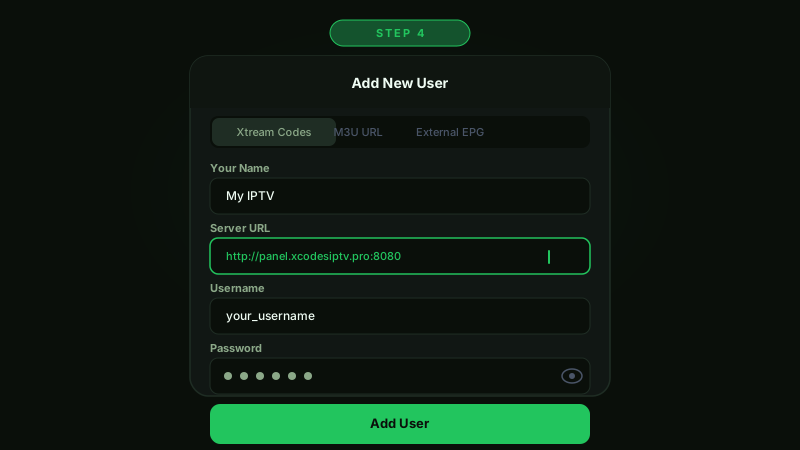
This is where the app connects to your channels. XCodes IPTV uses Xtream Codes — the most stable connection method available.
- Open IPTV Smarters Pro
- Tap Add New User
- Select Xtream Codes API
- Enter these 3 items from your welcome email: Server URL, Username, and Password
- Tap Add User
Your full channel list loads in 10–60 seconds depending on connection speed. 20,000+ channels appear organized by category — Sports, Movies, News, Kids, and more.
If it says Authorization Failed, the fix is almost always a typo in the credentials. Copy-paste directly from your welcome email. Do not type manually. If the problem persists, contact XCodes IPTV support — they respond fast.
Step 5 — Optimize for Best Performance
Setup is done. These tweaks take 2 minutes and make a real difference — especially for 4K and live sports.
- →Use 5GHz Wi-Fi if your router supports it — faster and less congested than 2.4GHz
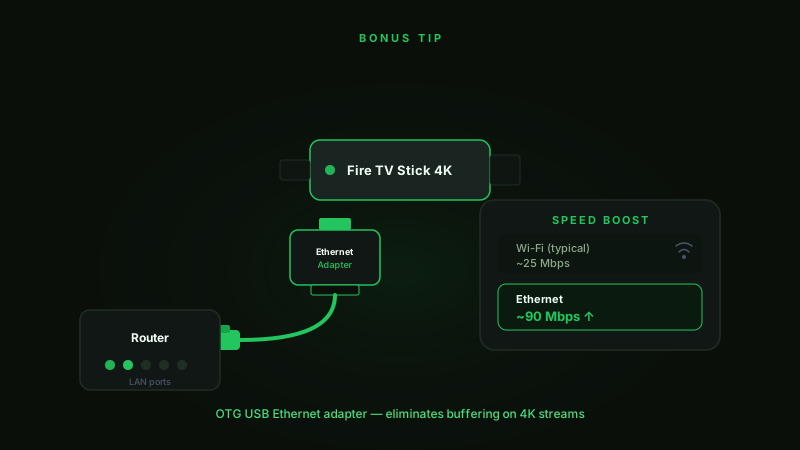
- →Or use a $15 Amazon Ethernet Adapter for a wired connection. This is the single best upgrade for live sports stability
- →Clear IPTV Smarters cache every 1–2 weeks: Settings → Applications → Manage Apps → IPTV Smarters → Clear Cache
- →Disable Data Monitoring: Settings → Preferences → Data Monitoring → OFF
- →Speed requirements: 10 Mbps for HD on one device, 25 Mbps minimum for 4K, 50 Mbps if multiple devices stream at once
Frequently Asked Questions
Do I need to jailbreak my Firestick for IPTV?
No. Enabling Apps from Unknown Sources in Developer Options is all you need. It is a standard Amazon feature. Your warranty stays intact.
Which IPTV app is best for Firestick in 2026?
IPTV Smarters Pro is easiest for beginners — free and supports M3U and Xtream Codes. TiViMate is better for heavy live TV users who want a proper grid-style TV guide.
What internet speed do I need?
10 Mbps handles HD on one device. 4K needs 25 Mbps minimum. Multiple simultaneous streams — plan for 50 Mbps.
My channels won't load — what do I do?
Check your credentials first — one wrong character breaks the login completely. Then check your connection. If both are fine, reach out to our support team:
Can I use one subscription on multiple Firesticks?
XCodes IPTV supports 2 simultaneous connections. Install the app on as many devices as you want — only 2 can stream at the same time.
Five steps, under 10 minutes. If you hit a wall at any point, our support team usually answers within minutes.
If you haven't subscribed yet, start with the free 24-hour trial — full access, no card, no commitment.